Hi, I think you are struggling to open a link in new tab in selenium Python. Let me fix your problem. In this post, I am going to explain you How to Open any Link which is available on any site in new tab and I am also gonna explain how to Open a normal link in new tab. I will also explain How to Switch Between Tabs. That’s why, read the post till end and don’t forget to share it with your friends because I know that your friends are also struggling in this thing. So, let’s get started.
How to open any Link which is available on any site?
It’s not such a big problem. Let me explain you how to do that. I am going to use the Google Search Page for demonstration, you should do the steps with the site you want to.
First of all Let’s open the Page which contains the link/links.
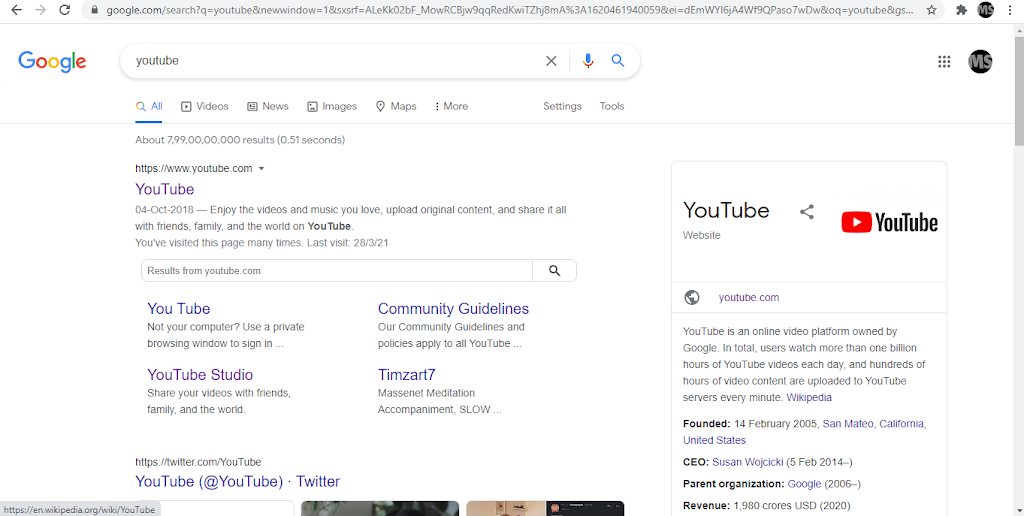
I had searched “youtube” on the Google Search Engine and I am using the Search Results Page For Demonstration
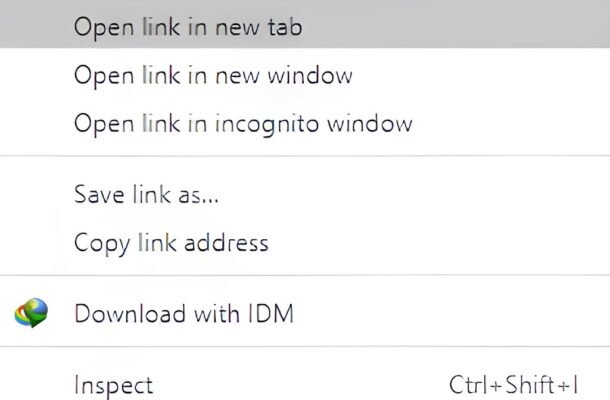
Step 1:- Right Click on the Link You want to Open In New Tab and Click On Inspect Button.
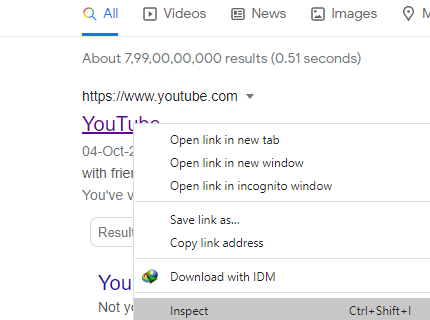
Now, You will See a Developer Console Appeared on the bottom or right of the page.
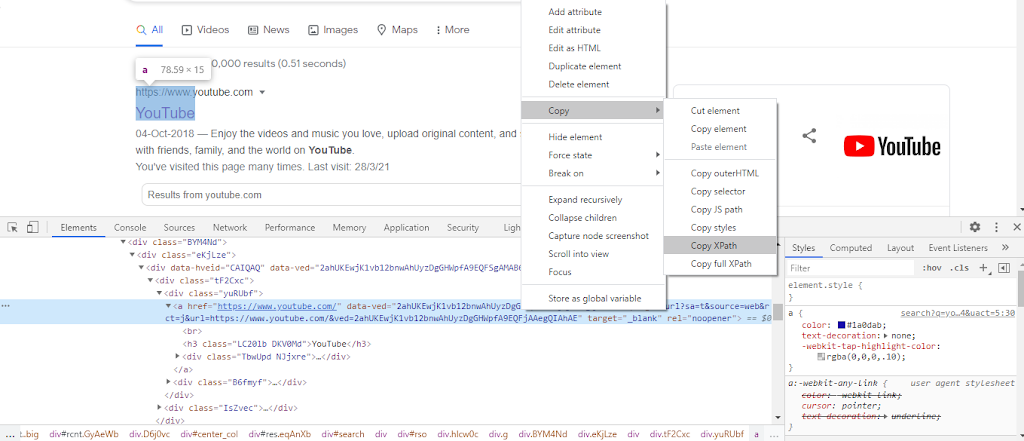
Step 2:- Now Right Click on the ‘a’ tag which contains the link and go to Copy and click on XPath.
from selenium import webdriverStep 4:- Now we will Initialize Chrome Driver and Get the Site Url.
driver = webdriver.Chrome()
driver.get('https://www.google.com/search?q=youtube')Step 5:- Now we will Find The ‘a’ tag by it’s XPath which we copied earlier and then get the href attribute of the a tag.
url = driver.find_element_by_xpath('//*[@id="rso"]/div[1]/div/div/div/div/div/div[1]/a').get_attribute('href')Step 6:- Now we will execute a Javascript Script which helps to open a new tab and then we will Use the webdriver function to switch to the new opened tab.
driver.execute_script('window.open('');')
driver.switch_to.window(driver.window_handles[1])Step 7:- Then we will get the link we fetched by finding href attribute of the element.
driver.get(url)And Here you go, You Opened the Link in new Tab. If you want to close the tab then Just Use This Code.
driver.close()Or if you want to Switch Back to Previous Tab Then Use This code.
driver.switch_to.window(driver.window_handles[0])How to Open a Normal Link in New Tab?
Like Shown Above, This is also very easy. Just we need is to get a link and then open a new tab by executing a JS Script and then switch to the New Tab and Then Get the url. Here is the Code For that.
from selenium import webdriver
driver = webdriver.Chrome()
driver.get('https://www.google.com/')
driver.execute_script('window.open('');')
driver.switch_to.window(driver.window_handles[1])
driver.get('https://www.youtube.com/')
# For Closing The Second Tab
driver.close()
# For Switching Back to Main Tab
driver.switch_to.window(driver.window_handles[0])And Here you go, I had explained How to Open, Switch and Close Tabs using Python Selenium. I hope you liked it and It helped you. Thanks For Reading and Please Don’t Forget to Share 🙂